How to Create a Spotify Canvas in 2026: Boost Your Streams with Visual Loops
Spotify Canvas turns your static track listing into a moving, eye-catching visual. That three to eight second looping video plays behind your song whenever a listener lands on it, and the data is clear: tracks with a Canvas see higher save rates, more shares, and longer listening sessions. This guide walks you through every step, from file specs to upload, creative ideas, and measuring the results.
What Is Spotify Canvas?
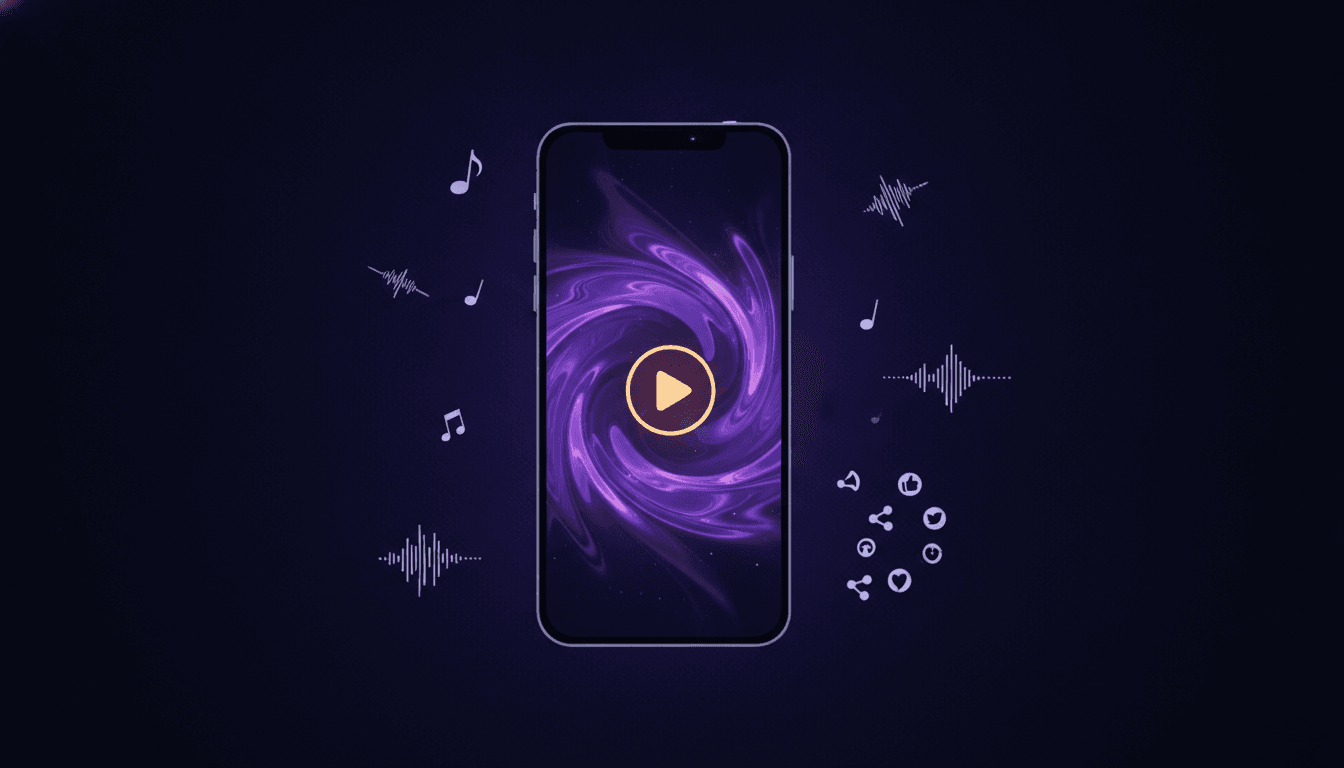
Spotify Canvas is a short looping video that replaces the static album art on your track's Now Playing screen. It runs on a continuous loop for the entire duration of the song, giving listeners a visual experience while they listen.
Canvas videos are three to eight seconds long. They play automatically on mobile devices and appear whenever someone opens the Now Playing view. Unlike a music video, Canvas is designed to be ambient and complementary. It does not tell a full story. It sets a mood, reinforces your brand, and gives fans something worth sharing.
Artists and labels upload Canvas clips directly through Spotify for Artists. The feature is available to all verified artists, and there is no cost to use it. Once uploaded, your Canvas goes live across iOS and Android within hours.
Why Spotify Canvas Matters for Stream Growth
Canvas is not just a visual upgrade. It is a measurable growth tool. Spotify's own data shows that tracks with Canvas see a 5% increase in streams, a 145% increase in shares to social platforms, and a 20% boost in saves to listener libraries. Those numbers matter because saves and shares feed the algorithm that powers Discover Weekly and Release Radar recommendations.
When a listener shares your track to their Instagram Stories, the Canvas video plays in the share card instead of a static image. That moving visual stands out in a feed full of photos and screenshots. It catches attention and drives taps back to Spotify.
Canvas also signals professionalism. A well-crafted visual loop tells playlist curators, A&R teams, and potential collaborators that you invest in your releases. Every touchpoint matters when you are building a career, and Canvas is one of the easiest ways to elevate your presence on the platform.
For labels managing multiple releases, Canvas provides another data point to track in your analytics dashboard. You can compare save rates and share rates between tracks with and without Canvas to quantify the visual's impact on your catalog.
Spotify Canvas Requirements and Specs in 2026
Before you create anything, you need to know the technical requirements. Getting these wrong means your upload will be rejected or your video will look distorted on screen.
File Format and Dimensions
| Specification | Requirement |
|---|---|
| File format | MP4 or JPEG (video strongly recommended) |
| Resolution | 1080 x 1920 pixels (9:16 vertical) |
| Aspect ratio | 9:16 (portrait) |
| Max file size | 16 MB |
| Color space | RGB |
| Frame rate | 24 fps or higher |
| Codec | H.264 recommended |
The 9:16 vertical format matches a full mobile screen. Avoid placing critical elements at the very top or bottom of the frame, because Spotify's interface overlays (track title, artist name, playback controls) will cover those areas. Keep your focal point in the center 60% of the frame.
Duration and Loop Rules
| Specification | Requirement |
|---|---|
| Minimum length | 3 seconds |
| Maximum length | 8 seconds |
| Loop behavior | Seamless, continuous loop |
| Audio | None (Canvas is silent; the track audio plays) |
The best Canvas videos loop seamlessly. When the end of the clip meets the beginning, there should be no visible jump or stutter. Plan your content with the loop point in mind from the start. Simple movements like slow zooms, drifting particles, or panning shots loop more naturally than complex action sequences.
Canvas does not include audio. The song itself provides the soundtrack. Do not embed audio in your video file.
How to Upload a Spotify Canvas (Step-by-Step)
Uploading a Canvas takes less than five minutes once your video is ready. Follow these steps:
-
Log in to Spotify for Artists. Open the Spotify for Artists app on your phone or go to artists.spotify.com on desktop. You must be a verified artist or have a team member role on the artist profile.
-
Select your track. Navigate to your Music tab and find the track you want to add a Canvas to. You can add Canvas to any track in your catalog, not just new releases.
-
Tap "Canvas" on the track page. On mobile, scroll down on the track's detail page and tap the Canvas option. On desktop, click the three-dot menu next to the track and select Canvas.
-
Upload your video. Select your MP4 file. Make sure it meets the specs: 1080 x 1920, 3 to 8 seconds, under 16 MB. The app will show a preview of how it will loop.
-
Preview and adjust the loop. Watch the preview carefully. Check that the loop point is smooth and that no important elements are hidden behind the interface overlays. Trim or adjust if needed.
-
Submit. Tap Post or Save. Your Canvas will go live within a few hours. Spotify reviews Canvas submissions for content guidelines compliance, so avoid text overlays with URLs, offensive imagery, or misleading content.
-
Verify it is live. Open Spotify on your phone, play the track, and confirm the Canvas appears on the Now Playing screen. Share it to your Instagram Stories to test the social share card.
You can replace or remove a Canvas at any time by returning to the same track page in Spotify for Artists. There is no limit on how many times you can update it.
Pro tip for labels: If you manage a large catalog, prioritize adding Canvas to tracks that are already gaining traction on editorial or algorithmic playlists. The share boost from Canvas can amplify momentum during a critical growth window. Pair this with a strong pre-save campaign on your next release to maximize day-one engagement.
5 Creative Canvas Ideas That Increase Saves and Shares
The best Canvas videos are simple, visually striking, and perfectly looped. Here are five proven approaches:
1. Lyric animation. Display one or two key lines from your chorus with subtle motion. Use kinetic typography that fades, slides, or pulses in time with the beat. Keep the text large enough to read on a phone screen and avoid cluttering the frame.
2. Behind-the-scenes footage. Short clips from the studio, a live performance, or a recording session add authenticity. Fans connect with the creative process. A slow-motion shot of hands on a piano or a close-up of a mixing desk works well in a 5-second loop.
3. Abstract visuals and motion graphics. Animated gradients, particle effects, or geometric patterns create a mood without competing with the music. Match the color palette to your album art for brand consistency. This approach works especially well for electronic, ambient, or instrumental tracks.
4. Nature and texture loops. Slow-motion footage of rain, flames, ocean waves, or smoke creates hypnotic loops that feel seamless. These visuals are versatile and pair well with almost any genre. Stock footage libraries offer royalty-free options that you can color-grade to match your aesthetic.
5. Artist portrait with subtle motion. A photo of yourself with a slow zoom, light flicker, or parallax effect bridges the gap between static art and full video. It keeps you recognizable while adding the motion that drives shares. Tools like Canva, CapCut, or After Effects can add these effects to a still image in minutes.
The key principle: simplicity loops better than complexity. A clean, three-second animation will outperform a busy, eight-second clip that stutters at the loop point.
Where Music24 fits
Music24 is built for the work around a release. Add a song and it makes the posts and the videos, plans the rollout and publishes to TikTok, Instagram, YouTube, Facebook and Threads. Every song also gets one link page with pre-save, so fans are waiting on release day. Its analytics put your Spotify for Artists, YouTube and social numbers in one place, with each post next to the streams of the day it went out, so you can see what actually moved.
Start free with Music24: 7 days of the Pro plan, no card, then a Free plan for as long as you like.
FAQ
How long should a Spotify Canvas be?
A Spotify Canvas must be between 3 and 8 seconds long. Shorter clips (3 to 5 seconds) tend to loop more seamlessly and feel less repetitive during extended listening. The sweet spot for most artists is 4 to 5 seconds.
Can I add a Canvas to any track on Spotify?
Yes. You can add a Canvas to any track in your catalog, whether it was released yesterday or five years ago. The only requirement is that you have access to the track through Spotify for Artists as a verified artist or authorized team member.
Does Spotify Canvas cost money?
No. Canvas is a free feature available to all verified artists through Spotify for Artists. There is no fee to upload, update, or remove a Canvas from your tracks.
Does Canvas actually increase streams?
Yes. Spotify reports that tracks with Canvas see approximately 5% more streams, 145% more shares, and 20% more saves compared to tracks without Canvas. The share boost is the primary driver, because it puts your music in front of new listeners through social platforms.
What video editing tools work best for creating Canvas?
CapCut (free, mobile and desktop) is the most accessible option for quick Canvas creation. Canva offers templates designed for Spotify Canvas dimensions. For more control, Adobe After Effects or Premiere Pro handle motion graphics, seamless loops, and advanced effects. DaVinci Resolve is a strong free alternative for desktop editing.
Can I change or remove a Canvas after uploading?
Yes. You can replace or delete a Canvas at any time through Spotify for Artists. Navigate to the track, open the Canvas section, and upload a new video or remove the existing one. Changes go live within a few hours.
Does Canvas work on desktop Spotify?
Canvas is primarily a mobile feature. It plays on the Spotify mobile app for iOS and Android. The desktop app and web player do not currently display Canvas visuals. Since the majority of Spotify listening happens on mobile, Canvas still reaches most of your audience.
Get your music heard. Grow the fans who stay.
Add a song. music24 makes the posts and the videos, plans your release and publishes it on every channel. Free for 7 days on the Pro plan, no card.